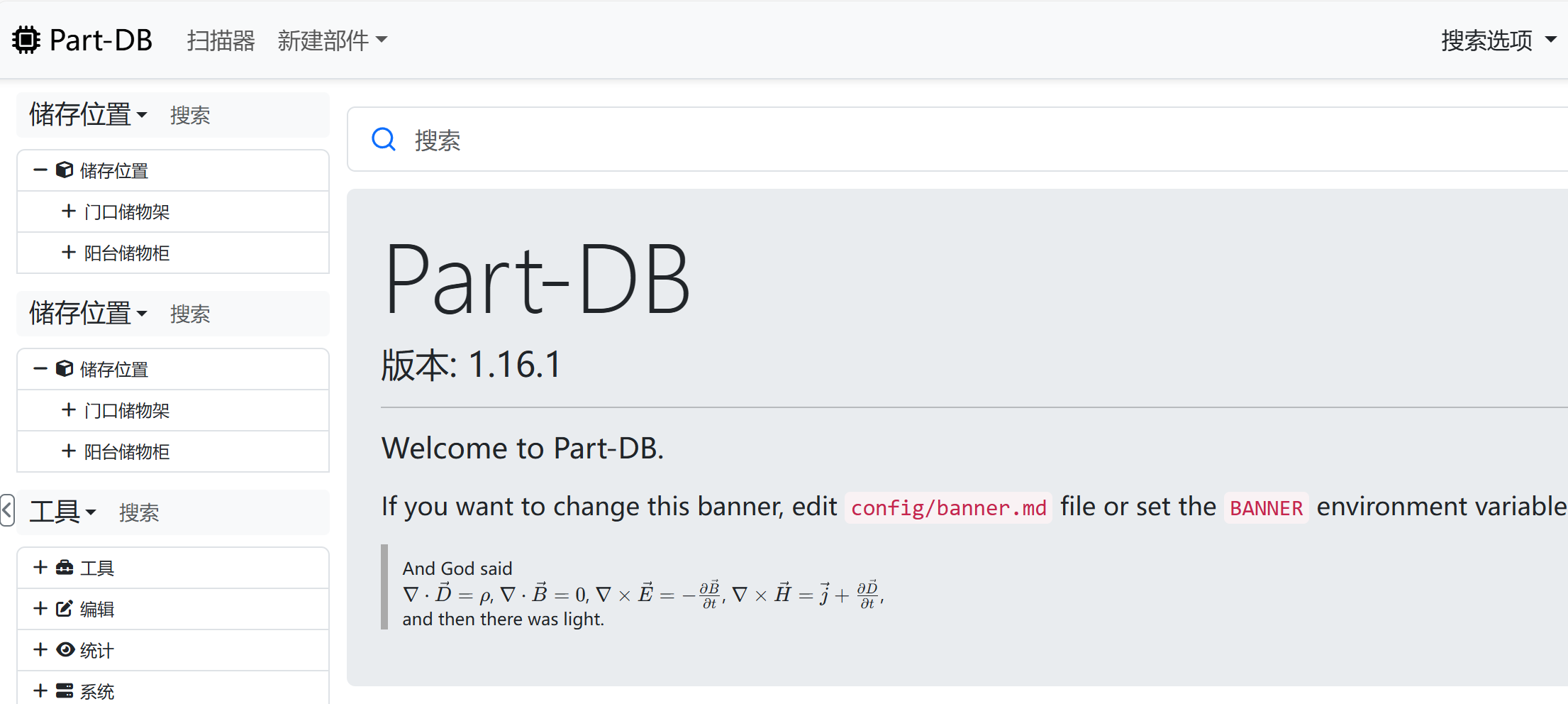
博主在使用过GreaterWMS这种过于复杂的系统之后,一度萌生放弃库存管理的想法,直到我遇到了Part-DB
介绍
Part-DB是一款针对元器件库存管理而设计的开源进销存系统,其元器件管理方式对于个人DIY爱好者与小型公司而言非常实用,能够实现以下功能:
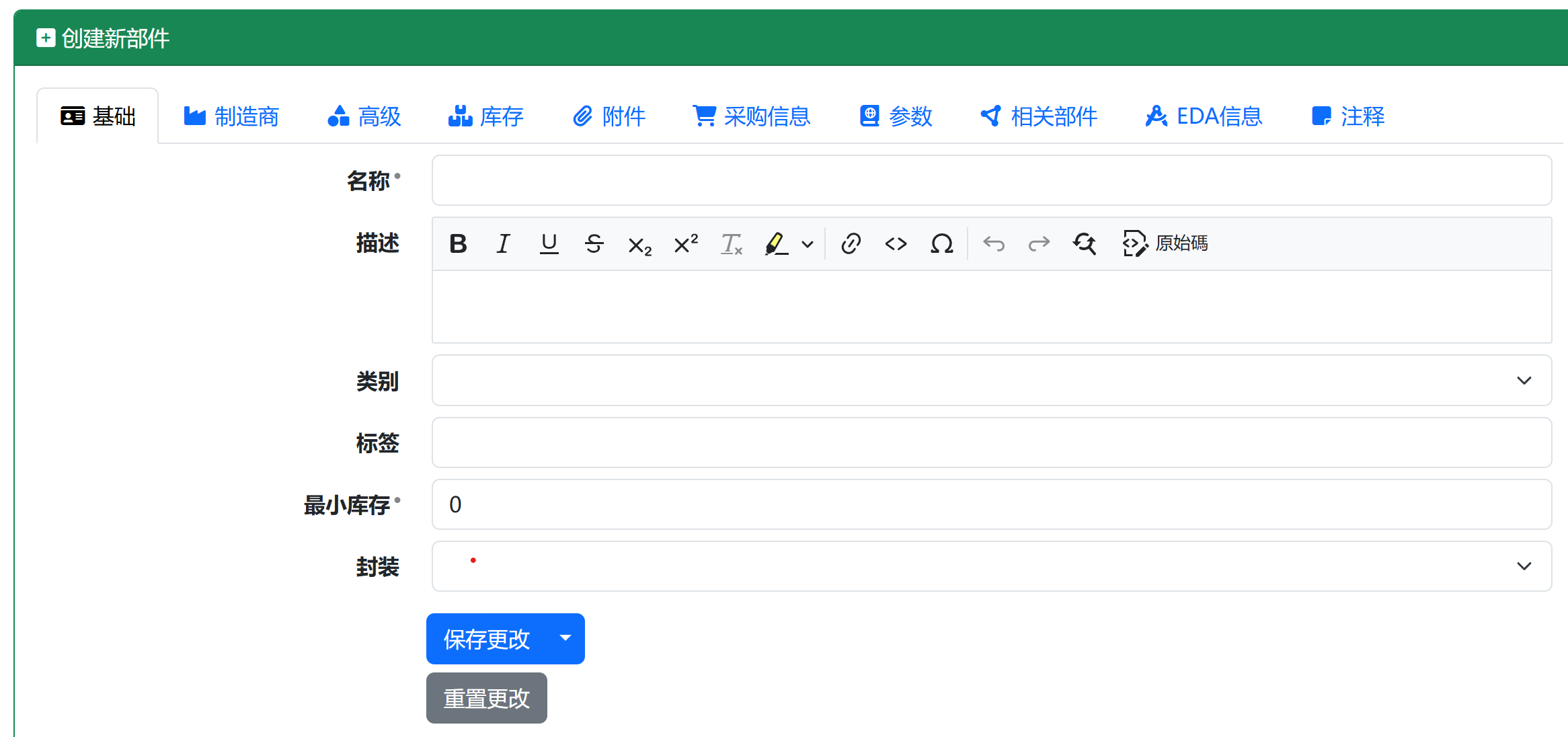
1. 元器件属性可设置选项丰富
可设置制造商、库存位置、实物图片、数据手册、封装等等。
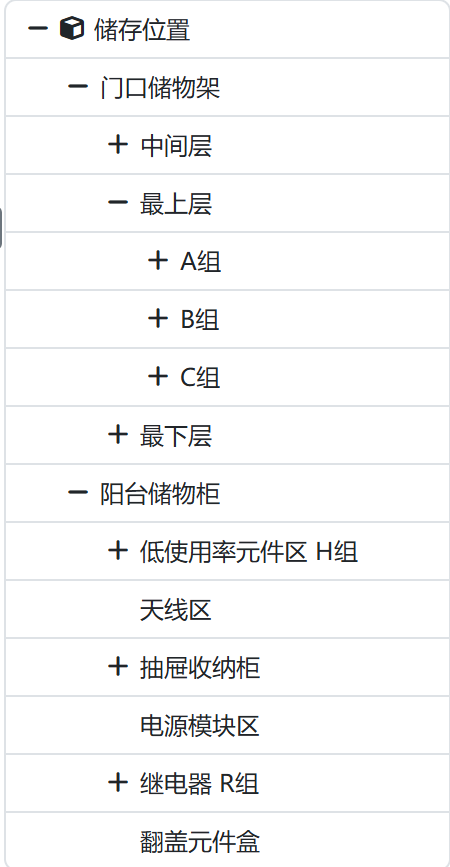
2. 储存位置自定义
可按照实际情况创建储存位置,在系统中能够直接查看该位置内所有元器件。
3. 可靠的标签生成
能够为每个元器件生成专属标签,也能够给储存位置生成标签;
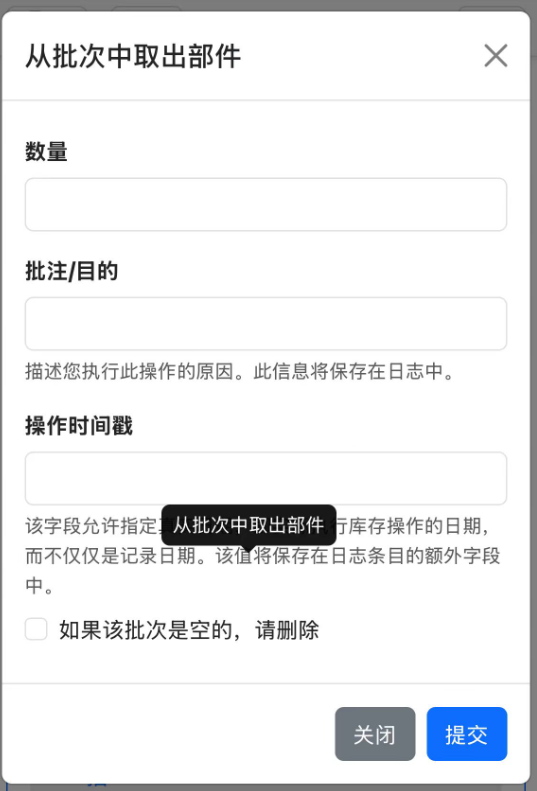
直接扫描元器件标签即可进行出入库操作。
4. 快捷的元器件导入
能够从LCSC,德捷电子等平台导入元器件,从服务器拉取器件图片、数据手册等。

安装
由于博主有群晖NAS,所以这次使用Docker(Container)进行搭建,DSM版本7.2.1。
- 如果群晖没有安装Docker(Container),先安装,若已安装跳过这一步。
- 在docker目录下创建Part-DB文件夹。
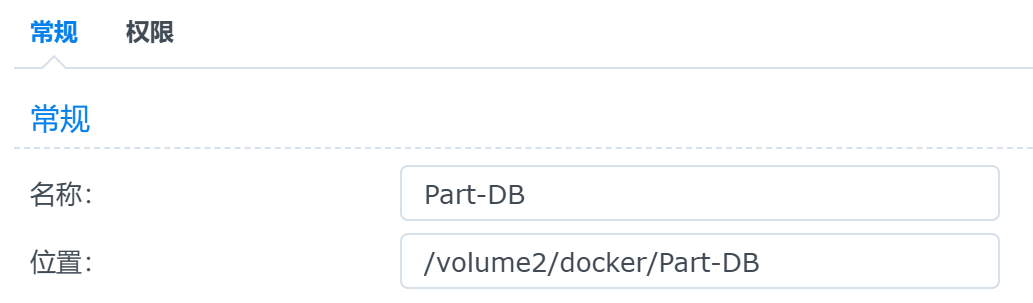
- 在Part-DB下新建“public_media”文件夹。
- 在Part-DB目录下新建“docker-compose.yaml”文件,并使用文本文档打开,将下列内容粘贴进去,注意缩进,可根据需求自行修改:
version: '3.3'
services:
  partdb:
    container_name: partdb
    # 设置默认访问端口,我这里设置为8888
    ports:
      - '8888:80'
    volumes:
      # By default
      - ./uploads:/var/www/html/uploads
      - ./public_media:/var/www/html/public/media
      - ./db:/var/www/html/var/db
    restart: unless-stopped
    image: jbtronics/part-db1:latest
    environment:
      # Put SQLite database in our mapped folder. You can configure some other kind of database here too.
      - DATABASE_URL=sqlite:///%kernel.project_dir%/var/db/app.db
      # In docker env logs will be redirected to stderr
      - APP_ENV=docker

      # You can configure Part-DB using environment variables
      # Below you can find the most essential ones predefined
      # However you can add any other environment configuration you want here
      # See .env file for all available options or https://docs.part-db.de/configuration.html
      # !!! Do not use quotes around the values, as they will be interpreted as part of the value and this will lead to errors !!!

      # 默认语言设置
      - DEFAULT_LANG=zh
      # 默认时区设置
      - DEFAULT_TIMEZONE=Asia/Shanghai
      # The currency that is used inside the DB (and is assumed when no currency is set). This can not be changed later, so be sure to set it the currency used in your country
      - BASE_CURRENCY=CNY
      # The name of this installation. This will be shown as title in the browser and in the header of the website
      - INSTANCE_NAME=Part-DB

      # 启动LCSC
      - PROVIDER_LCSC_ENABLED=1
      - PROVIDER_LCSC_CURRENCY=CNY

      # Allow users to download attachments to the server by providing an URL
      # This could be a potential security issue, as the user can retrieve any file the server has access to (via internet)
      - ALLOW_ATTACHMENT_DOWNLOADS=0
      # Use gravatars for user avatars, when user has no own avatar defined
      - USE_GRAVATAR=0

      # Override value if you want to show a given text on homepage.
      # When this is empty the content of config/banner.md is used as banner
      #- BANNER=This is a test banner<br>with a line break

      # If you use a reverse proxy in front of Part-DB, you must configure the trusted proxies IP addresses here (see reverse proxy documentation for more information):
# - TRUSTED_PROXIES=127.0.0.0/8,::1,10.0.0.0/8,172.16.0.0/12,192.168.0.0/16- 打开群晖NAS的SSH,使用putty连接至群晖,使用管理员root权限登陆(具体连接方法请自行搜索):
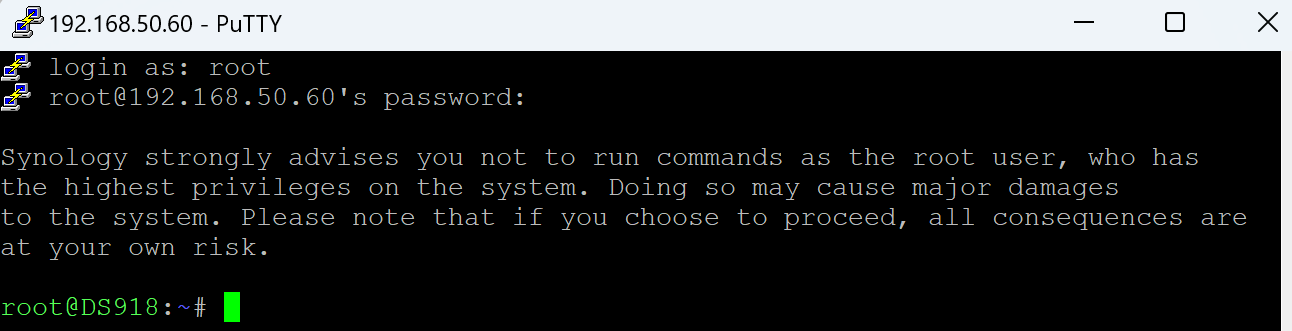
根据自己的目录情况,cd到之前创建的目录下:
cd /volume2/docker/Part-DB

使用docker命令创建容器:
docker-compose up -d
等待创建完成后初始化数据库:
# 进入容器
docker exec -it --user=www-data partdb /bin/bash
# 在容器内执行
php bin/console doctrine:migrations:migrate- 等待输出密码后退出容器,之后使用浏览器访问 你的群晖ip:8888 即可:
使用技巧
博主在使用过程中遇到了几个问题,例如:
1. 恶性BUG
这个撤销更改按钮,只要一点,日志系统就会崩溃
最后只能恢复备份才能解决,所以千万不要使用,github已提issue
2. LCSC拉取资源后,图片无法正常显示
由于Part-DB的LCSC使用的是海外版本,服务器在新加坡。
Part-DB默认不下载图片数据,所以这里建议修改环境变量使其自动下载图片到本地:
ALLOW_ATTACHMENT_DOWNLOADS       设置为 1
ATTACHMENT_DOWNLOAD_BY_DEFAULT   设置为 1
这样下载外部文件选项默认打勾,图片显示不受网络影响。
评论0
暂时没有评论